VR WEBSIM / PLAYER GUIDE
Player
guide
Stack cups as a simulated Booster T1 humanoid, in VR. Your PC browser runs the sim and your Meta Quest pairs with a 6-digit code. Nothing to install, and about two minutes to your first run.
- PC
- Chrome or EdgeOn a PC or laptop.
- HEADSET
- Meta Quest 2, 3, 3S or ProWith both controllers.
- NETWORK
- Same Wi-Fi works bestDifferent networks also work, through a relay.
- INSTALL
- NothingThe Quest's built-in Browser app is enough.
STEP 01 · PC
On the PC
-
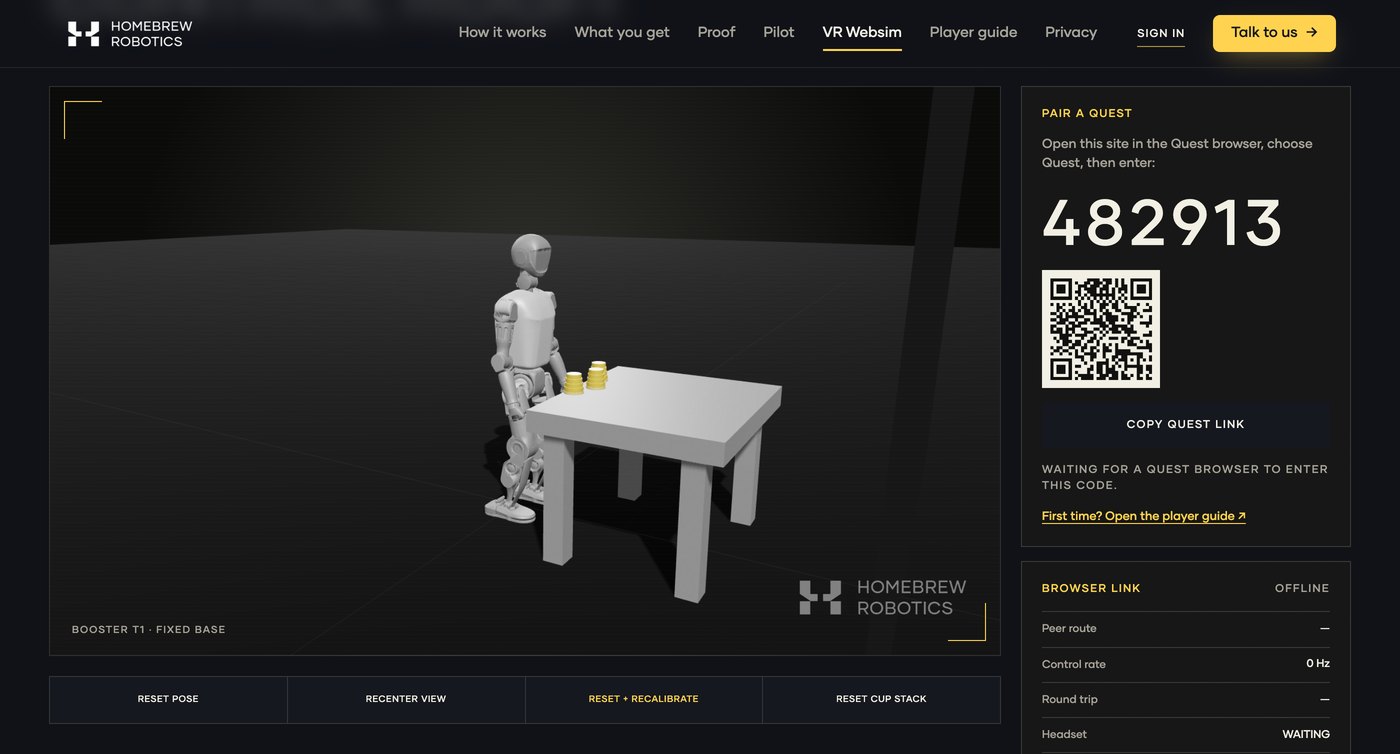
Go to homebrew.build/sim. On the This is the PC card, choose OPEN CONTROL ROOM.
-
First visit only: read the simulator data notice, tick the box and press ACCEPT & OPEN CONTROL ROOM.
What it covers is under Your data.
-
Wait for the robot and table to appear. This tab is the simulation, so keep it open and on screen for the whole session.
If it is minimized or hidden behind another tab, the robot freezes but the game clock keeps running.
-
Find the 6-digit code in the PAIR A QUEST panel.
One headset per code. A code lasts about an hour from when it was made or last paired; refresh the page for a new one.
STEP 02 · HEADSET
In the headset
-
Put the headset on and open the built-in Browser app, the regular web browser.
-
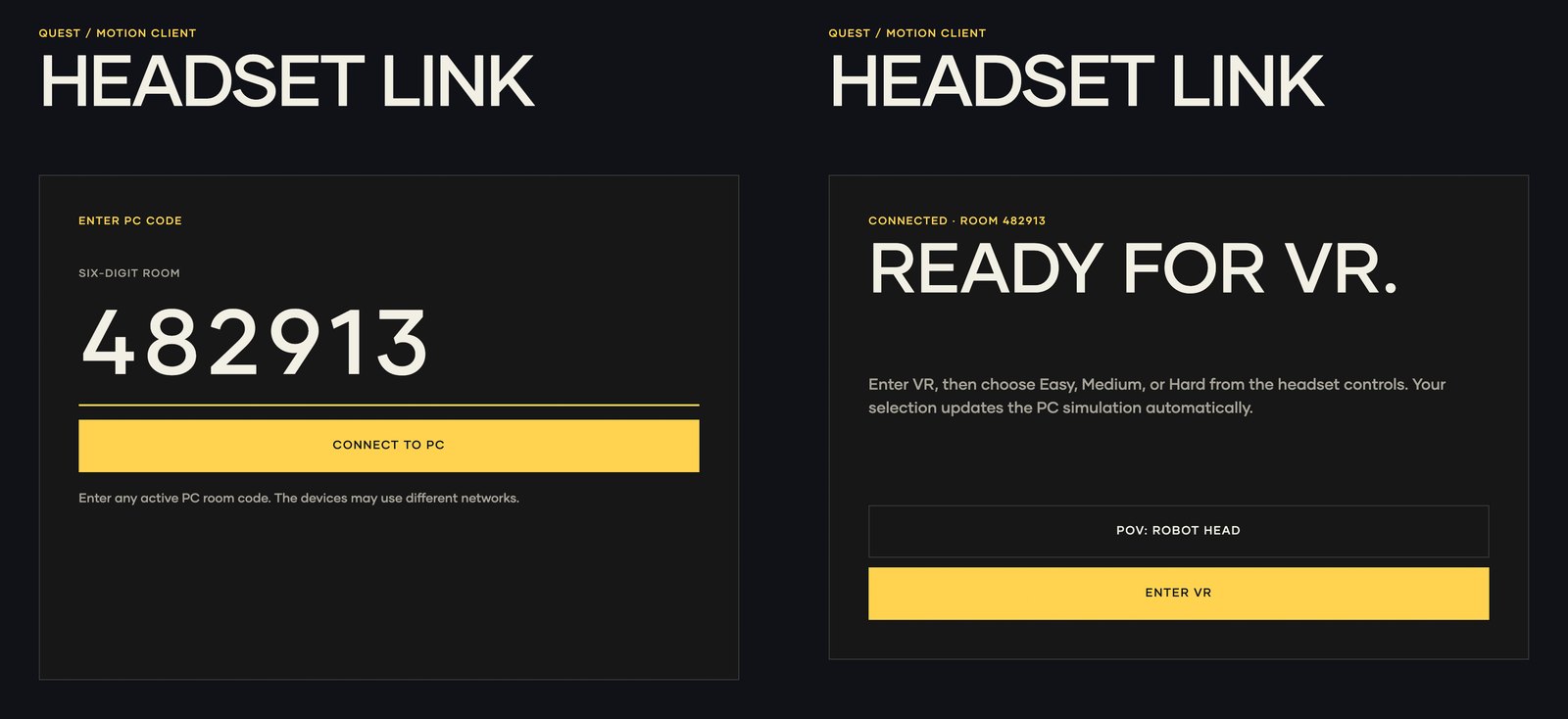
Go to homebrew.build/sim. On the This is the Quest card, choose OPEN HEADSET LINK, type the code and press CONNECT TO PC.
-
When the page says READY FOR VR., press ENTER VR and choose Allow.
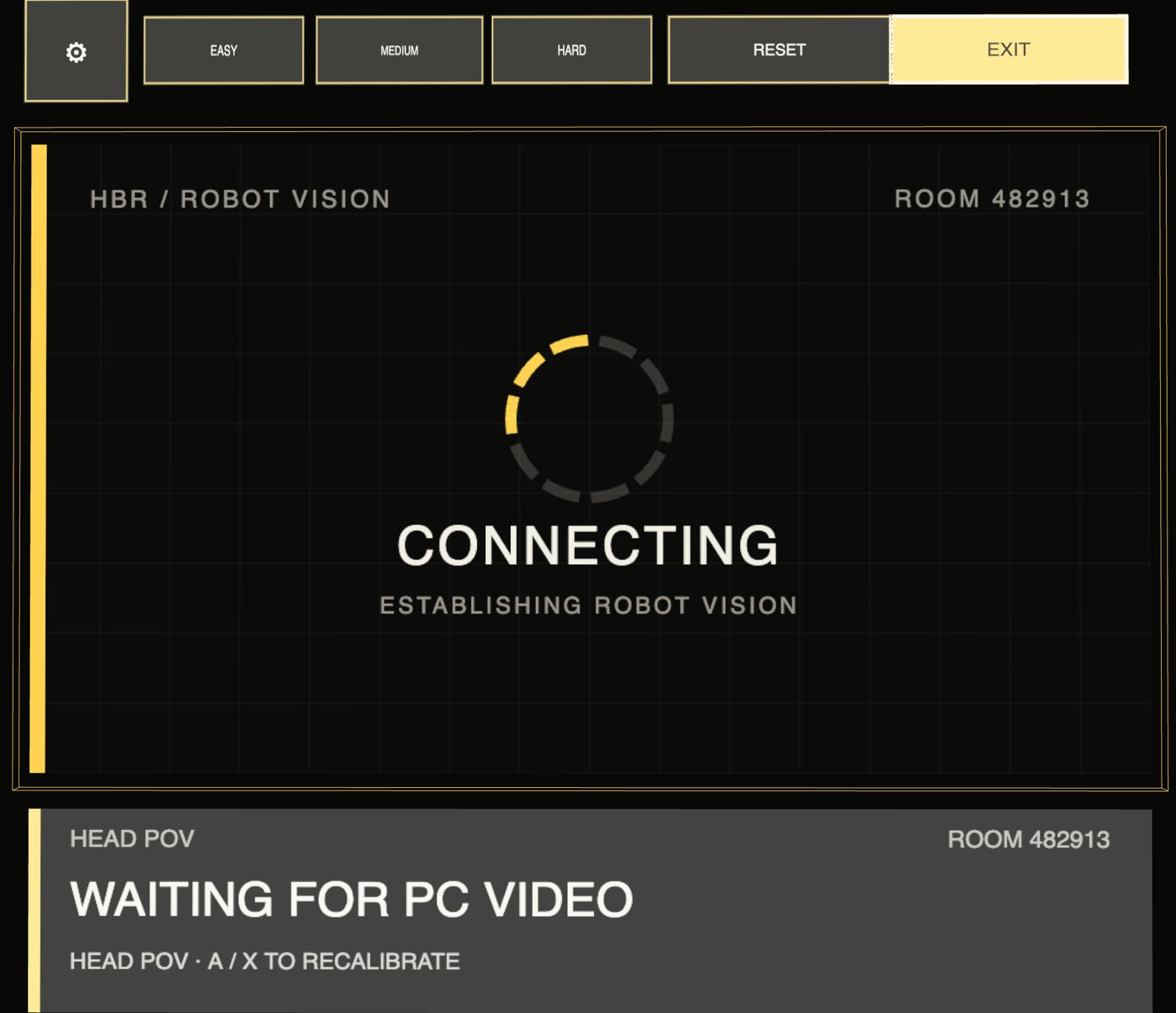
The headset may go dark briefly while it switches to VR. You then see CONNECTING (ESTABLISHING ROBOT VISION) until the robot's video arrives. Give it about 10 seconds.
WHAT YOU SEE IN VR
TOP TO BOTTOM- Toolbar
- ⚙ view distance, EASY, MEDIUM, HARD, RESET and EXIT. Point at a button and pull the trigger.
- Video panel
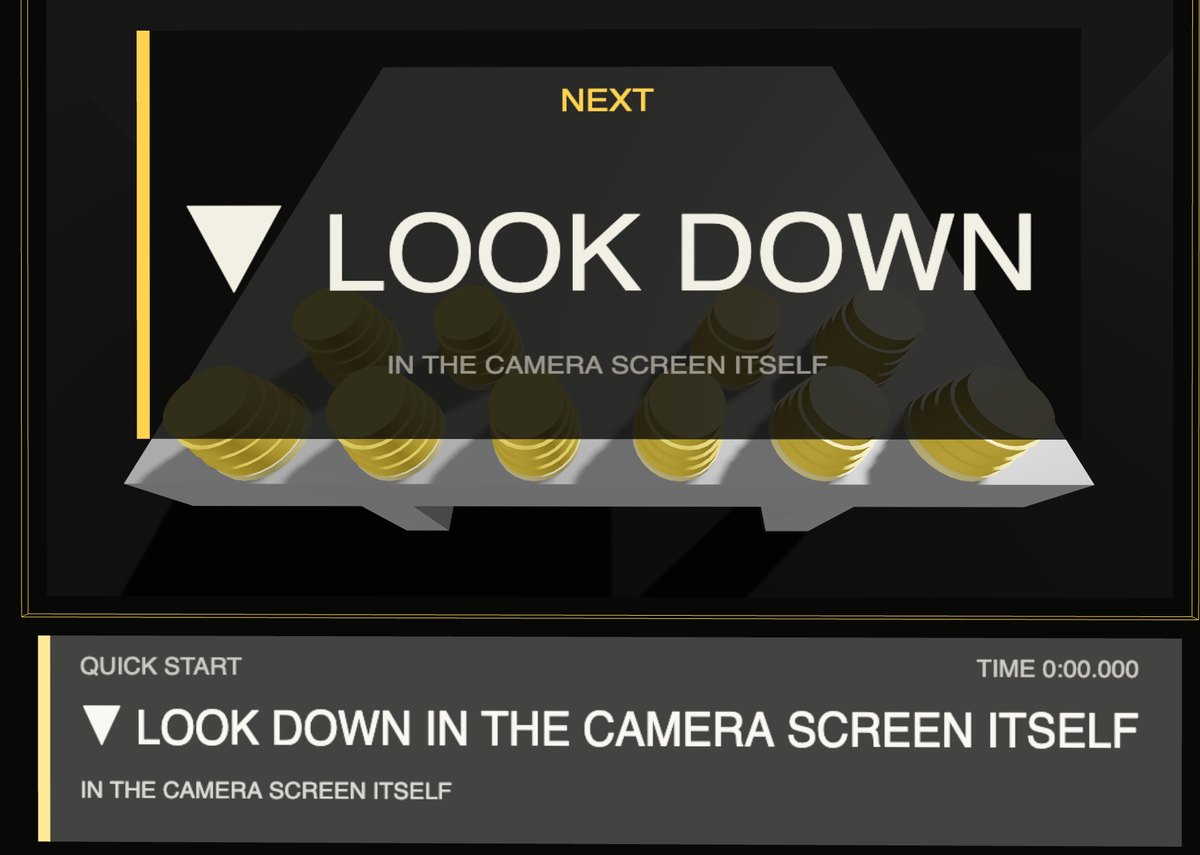
- The robot's camera. Look down to see the table and cups.
- Status bar
- What to do next, the difficulty and the game clock.
STEP 03 · DON'T SKIP
Calibrate
-
Stand up. The robot's torso is fixed, so seated poses map badly and the arms fight you.
-
Look straight ahead, let your arms hang relaxed at your sides, then press A or X on either controller.
This pose becomes your zero point. Calibrating with raised arms uses up your reach and leaves the robot with short arms.
-
Look down. The table and cups are below you in the robot's camera view.
FIRST, TO CALIBRATE
PRESS A / X
EITHER CONTROLLER
DO THIS
Standing, arms down, eyes forward.
NOT SEATED
The robot's torso is fixed.
NOT ARMS UP
It wastes your reach.
REFERENCE
Controls
Meta Quest Touch controllers. Use the controllers: hand tracking isn't supported yet.
YOUR BODY
ALWAYS ON- Head
- Turns the robot's head
- Hands
- Move the robot's hands
- Arms
- Both follow you after calibration
LEFT CONTROLLER
X · Y · MENU- X
- Calibrate or recalibrate
- Trigger or grip, hold
- Left magnet on
- Thumbstick click
- Head view or third person
- Y
- Not used
- Menu
- System button
RIGHT CONTROLLER
A · B · META- A
- Calibrate or recalibrate
- Trigger or grip, hold
- Right magnet on
- Thumbstick click
- Head view or third person
- B
- Not used
- Meta
- System button

CLOSERFARTHER
Moves the video panel nearer or further away.
EASYMEDIUMHARD
Picks the pyramid size. Switching resets the cups.
RESET
Puts the cups back and clears the clock.
EXIT
Leaves VR and drops the pairing. Type the same PC code to play again.
THE TASK
Cup stack
Pick the size from the buttons above the video panel in VR. Start with Easy.
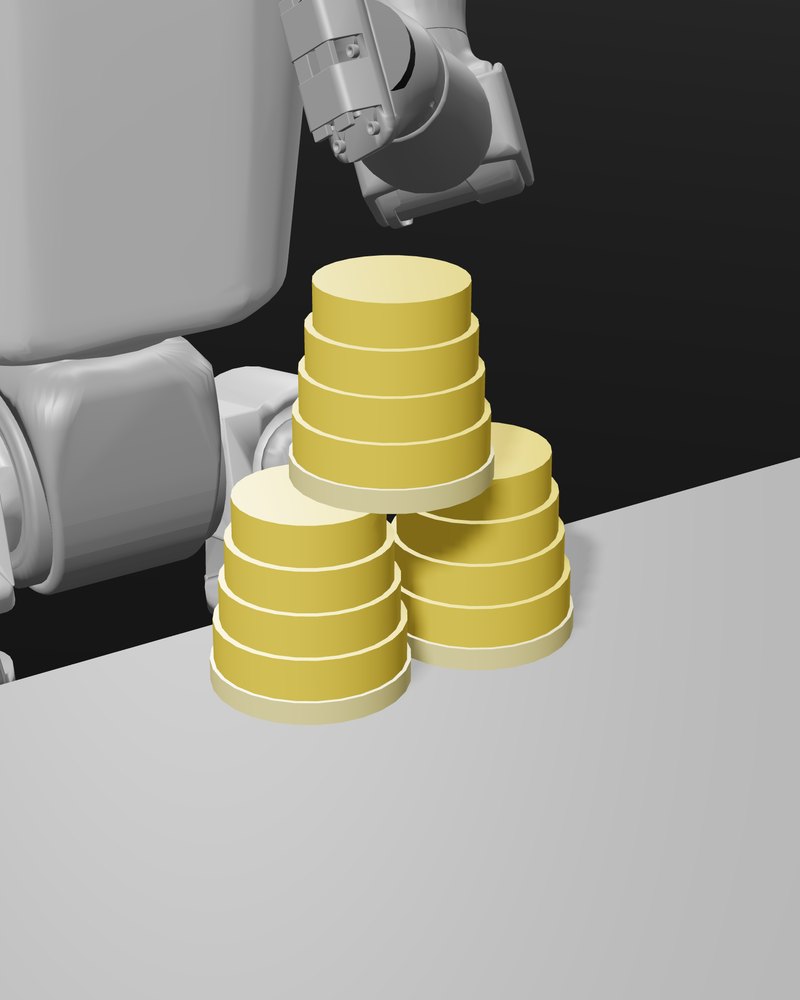
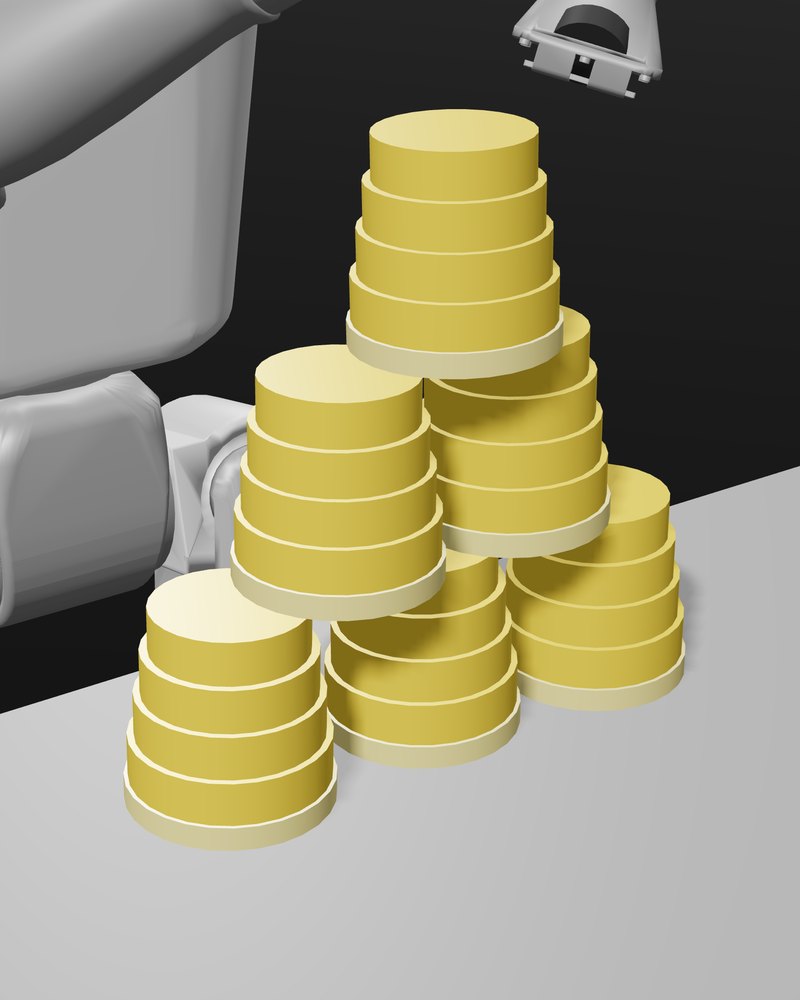
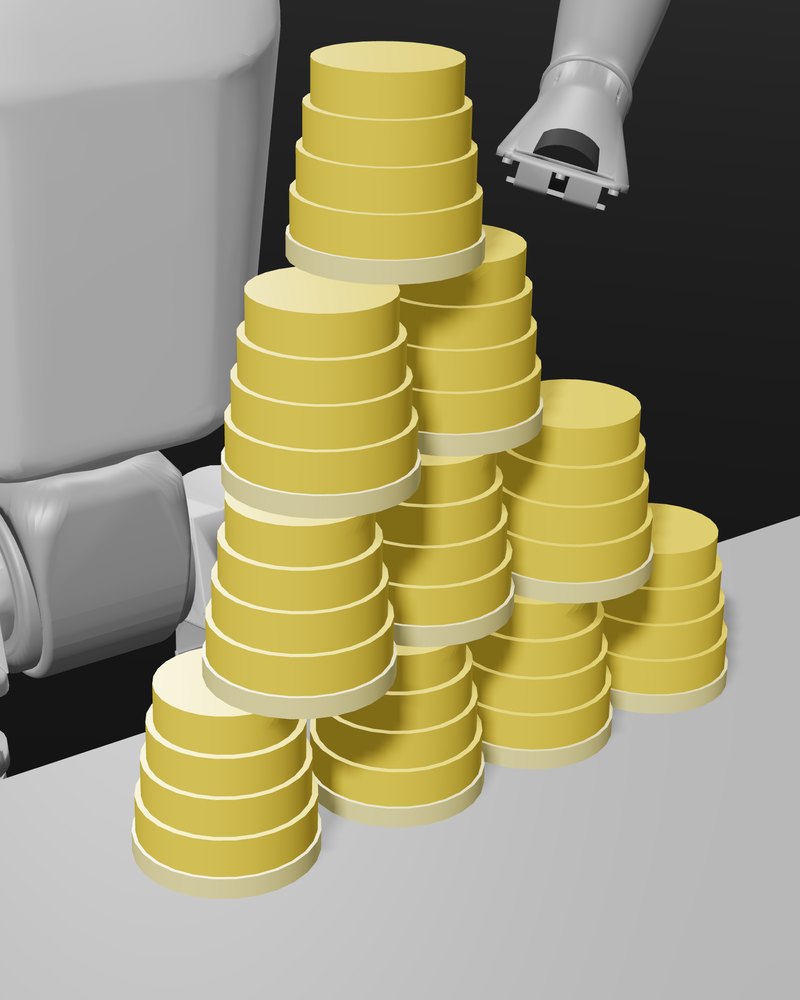
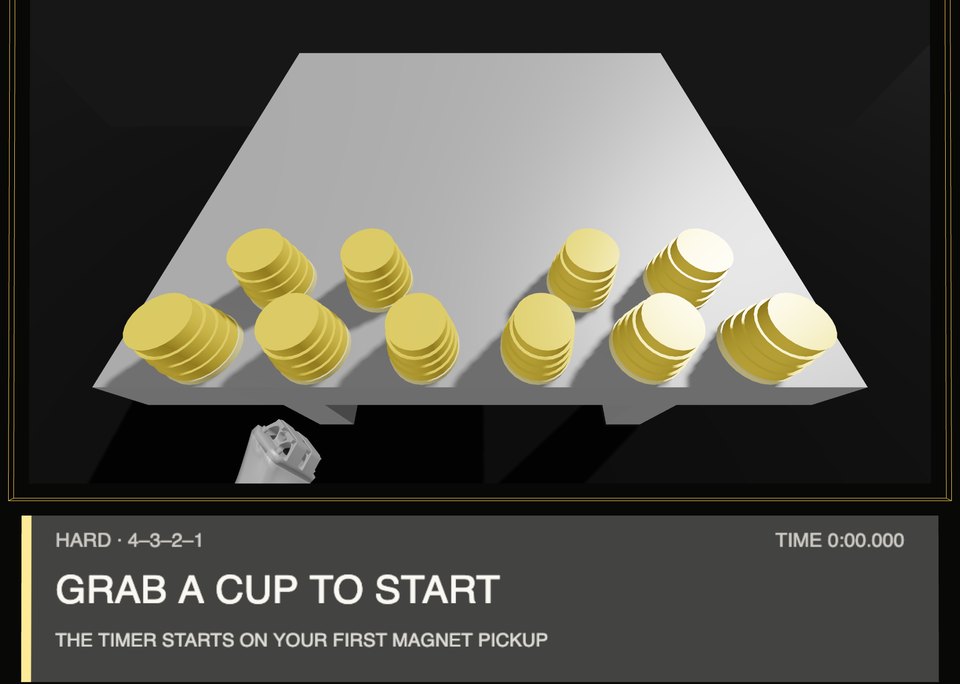
01PICK UP
Move a hand within about 11 cm of a cup and hold its trigger or grip. The clock starts on your first pickup.
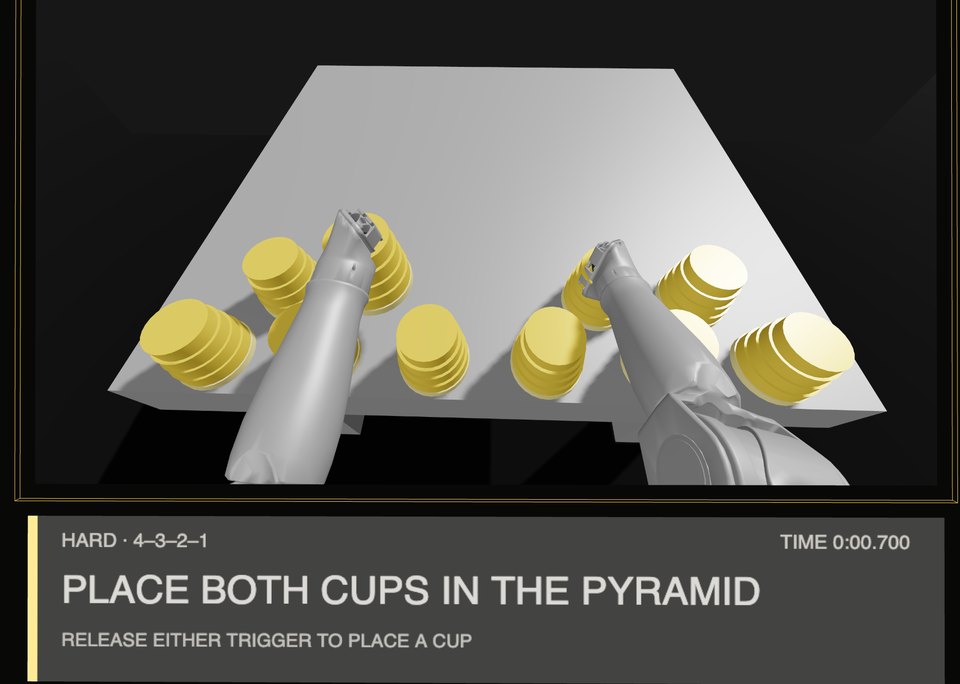
02PLACE
Carry it over and let go of both trigger and grip. Every cup upright, each row centred on the one below.
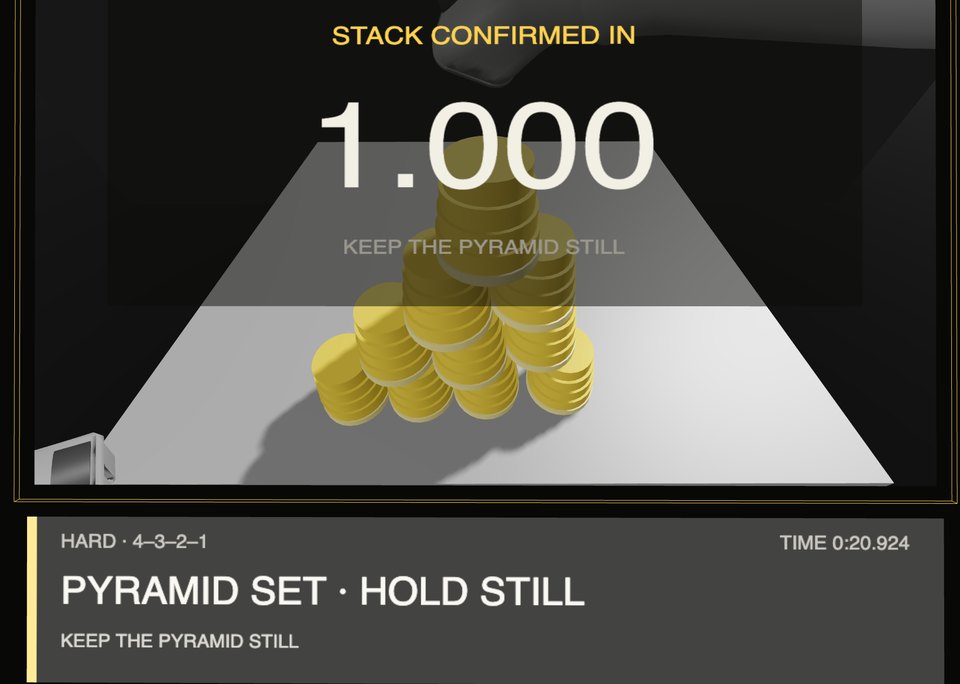
03HOLD STILL
Let go of every cup. A 2-second STACK CONFIRMED IN countdown runs. Bump it and it starts over.
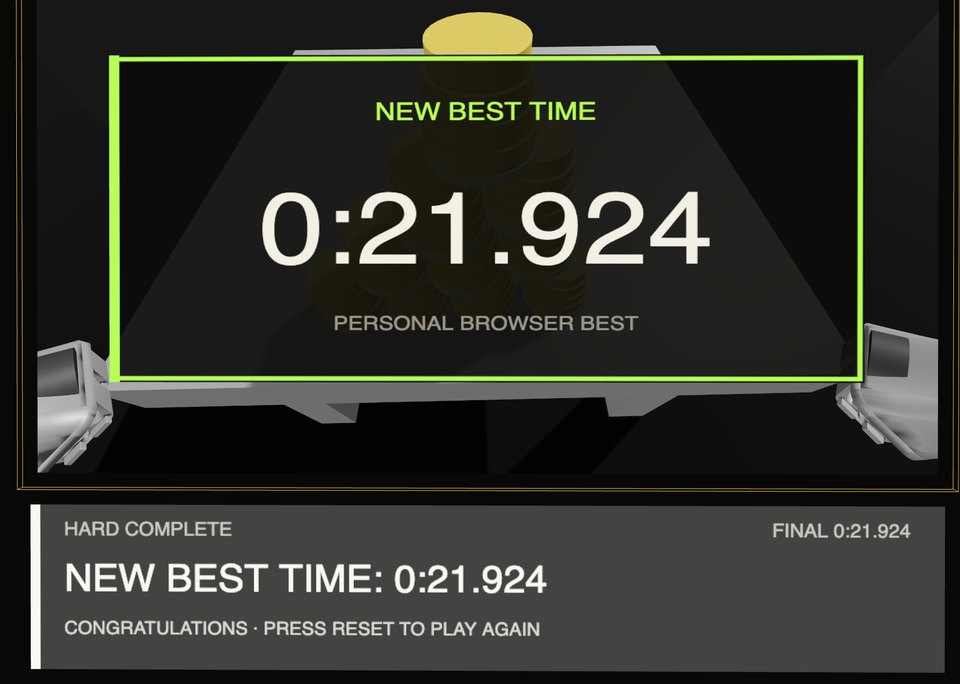
04YOUR TIME
The clock stops on YOUR TIME or NEW BEST TIME, 2-second hold included. Press RESET to go again.
- Move small and slow. The robot's arms are shorter than yours, so work in a box in front of your chest.
- Turn, don't stretch. Big reaches pin the arm at its limits. If a cup is far away, turn your body.
- Settle, then release. The magnet is forgiving on pickup. Hold your hand over the spot before letting go.
- Use both hands. The cups start on both sides, so let each hand fetch its own.
- Lost the table? Look down. If it stays out of view, the headset points the way, for example ◀ THE TABLE IS TO YOUR LEFT.
LEADERBOARD
Post your time
You can play without signing in. Your runs just stay off the public board.
-
On the PC, press SIGN IN WITH GOOGLE, before playing or right after a run.
-
Pick a display name or your X handle and press SET ONCE.
3 to 24 letters, numbers or underscores. The leaderboard shows it instead of your Google name, and it can't be changed later.
-
From then on, every verified run saves to the public leaderboard automatically.
-
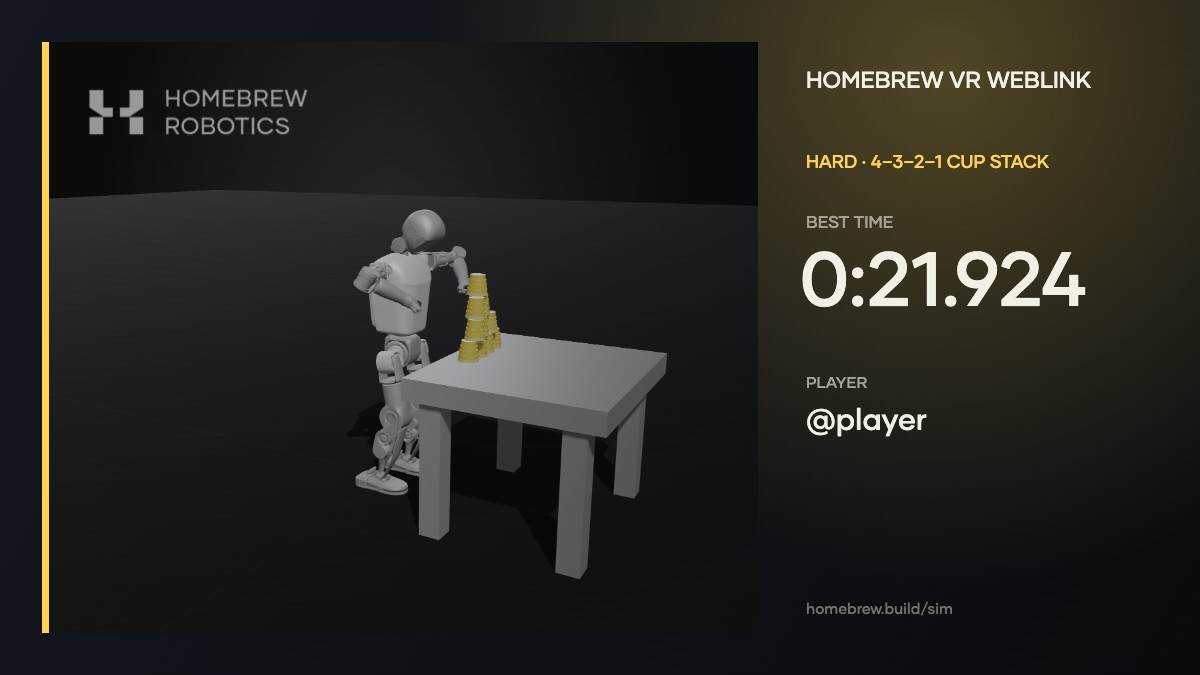
Press SHARE RESULT, then SHARE ON X.
A post opens with your time and a homebrew.build link that shows your card in the post. COPY IMAGE and DOWNLOAD PNG are there too.
PRIVACY
Your data
IN SHORT
We record your runs to check times for the leaderboard. We may also use them, labelled as sim data, in robot learning research.
TROUBLESHOOTING
If something's wrong
| Problem | Fix |
|---|---|
| Headset says "That PC room is not available." | Codes last about an hour, and refreshing or closing the PC tab makes a new one. Use the code the PC shows right now. |
| Headset says "That PC already has a Quest connected." | One headset per PC. Exit VR on the other headset, or refresh the PC page for a new code. |
| Pairing hangs or the link is laggy | Turn off any VPN. Same Wi-Fi works best; other networks connect through a relay (the PC shows RELAY) and may add lag. |
| Dark screen after ENTER VR | Normal for a moment while the headset switches to VR, then CONNECTING shows until the video arrives. Give it about 10 seconds. If it doesn't clear, check the PC tab is on screen, exit VR and enter the code again. |
| ENTER VR reads HTTPS REQUIRED, WEBXR UNAVAILABLE or HEADSET NOT FOUND | Open homebrew.build/sim in the Quest's built-in Browser app, not on a phone or PC. |
| FINDING CONTROLLERS or RIGHT CONTROLLER NOT TRACKED | Hold both controllers in front of the headset, then press A or X. |
| CONTROL LINK NOT READY, HEADSET TRACKING NOT READY or CALIBRATION FAILED | Wait for the robot's video to appear, then press A or X again. |
| Arms feel short, offset or drunk | You calibrated seated or with raised arms. Stand, arms at your sides, look ahead, press A or X. |
| Video frozen | The PC tab is minimized or hidden behind another tab. Bring it back to the front; the clock keeps running meanwhile. |
| A cup won't stick | Bring the hand closer: the magnet only grabs within about 11 cm. After a finished run, press RESET first. |
| Clock won't stop | Let go of every cup. Check each cup is upright and each row is centred, then hold still for 2 seconds. |
| My time isn't on the leaderboard | Sign in with Google and set your display name. Without an account your runs stay off the public board. |
| Kicked back to the code screen | Exiting VR drops the pairing. The headset asks for a new code, but the PC room stays open: type the same code again. |
RESET POSE
Resets the robot, cups and clock. Then press A or X in VR to calibrate.
RECENTER VIEW
Resets the PC's 3D camera, which is also the headset's third-person view.
RESET + RECALIBRATE
For short or offset arms. Keeps the cups; press A or X in VR when ready.
RESET CUP STACK
Starts the cups over, same as RESET in VR.
END SESSION
Ends the session on both devices.